Edit Conversation Flow
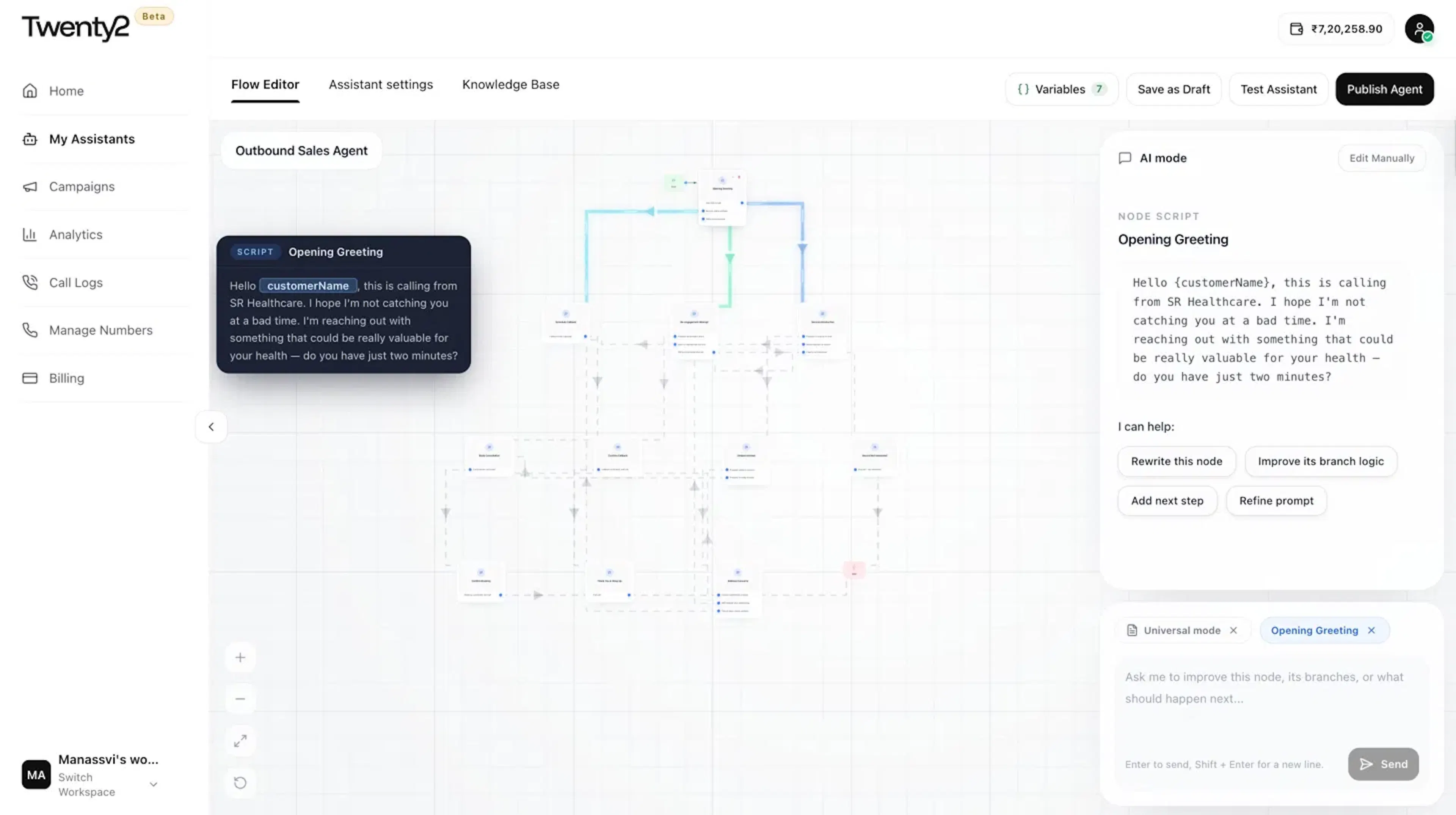
The Flow Editor shows a visual representation of you assistants conversational flow. When you finish the assistant setup, Twenty2 generates a complete flow here automatically. Every node, branch, and script is written based on your goal. Here, you can review the conversation and make changes to the flow using AI mode or manual editing.
Understanding the Flow Graph
Each node represents a step in the conversation such as opening greeting, service introduction, and so on. The arrows between nodes show the different directions the call can go depending on what the customer says. You can zoom, pan, and click any node to open it.
Edit using AI Mode
The edit panel has AI mode where an AI assistant helps you build and edit the flow by simply chatting with it. It also provides you some pre-defined actions which you can select to improve your flow. How it behaves depends on what's selected on the graph:
Universal mode (default): AI works across the entire flow. Use this for complete changes:
| Action | What it does |
|---|---|
| Create full flow | Generates a complete conversation structure from scratch based on your goal |
| Restructure journey | Reorganises the existing flow for better logic or broader coverage |
| Find missing edge cases | Flags gaps: e.g. what happens if the customer says they already bought the product |
| Tighten logic | Removes redundant or contradictory paths |
A specific node selected: click any node (or select more than one) and the same AI panel switches to working on just that part of the conversation:
| Action | What it does |
|---|---|
| Rewrite this node | Regenerates the script for this step only |
| Improve its branch logic | Refines how this node responds to different customer replies |
| Add next step | Extends the flow forward from this node |
| Refine prompt | Tightens the instruction driving this node's behaviour |
In both modes, you can also just type what you want in plain language instead of using the quick-action buttons. For example, "make this node sound less formal" or "add a path for when the customer asks about pricing".
Edit Manually
If you'd rather make a direct edit yourself instead of asking the AI, click Edit Manually on a selected node. This opens the raw Title, Summary, and Script fields for that step so you can type changes directly.
Use + Add Variable inside the script to insert dynamic values like {customerName}, which the assistant uses in the actual call from your contact list.
Variables
Variables are data objects that flow into and out of every call.
Input Variables are values you give before the call, usually from your contact list, that personalise the conversation, for example, customerName.
Output Variables are the data points the assistant extracts from what the customer actually says during the call, for example, Prospect Interest Level or Concerns Raised. These get saved automatically to Call Logs after every call.
You can add, rename, describe, or delete variables at any time from the flow editor.
Assistant Settings
Use Assistant settings to adjust the assistant's identity without touching the conversation flow itself. This includes Assistant Name, Caller Name, Language, Company Description, the AI-generated Summarized Role, the Voice, and a toggle for whether the Agent speaks first when a call connects.